
In this guide
Before you beginYour first minuteProject summaryDates and layersPhotos and panoramasDownloads and sharingAccess approvalReport a problemClient acceptanceBefore you begin
You should receive a permanent project link, the approved sign-in email address, the name of your Client Project Owner, and a short summary of the latest capture date.
Project missing? Do not create a new project. Contact your Client Project Owner or Skylens support and state which email address you used.
Your first minute in Skylens
- Open the permanent link you received.
- Sign in with the approved email address.
- Select the project and the capture date you want to inspect.
- Show or hide layers with the eye icon.
- Select a model, photo, panorama, video, or map item to open it.
Project summary
Your delivery message should include:
Project: {{PROJECT_NAME}}
Latest capture: {{LATEST_CAPTURE_DATE}}
Available capture dates: {{CAPTURE_COUNT}}
Photos: {{PHOTO_COUNT}}
360 panoramas: {{PANORAMA_COUNT}}
Videos: {{VIDEO_COUNT}}
Last update: {{LATEST_UPDATE_DATE}}
How the project is organized
Capture dates
Content is organized by when it was captured—not when it was uploaded. A new capture date should not delete or replace earlier documentation.
Layers
Photos and panoramas
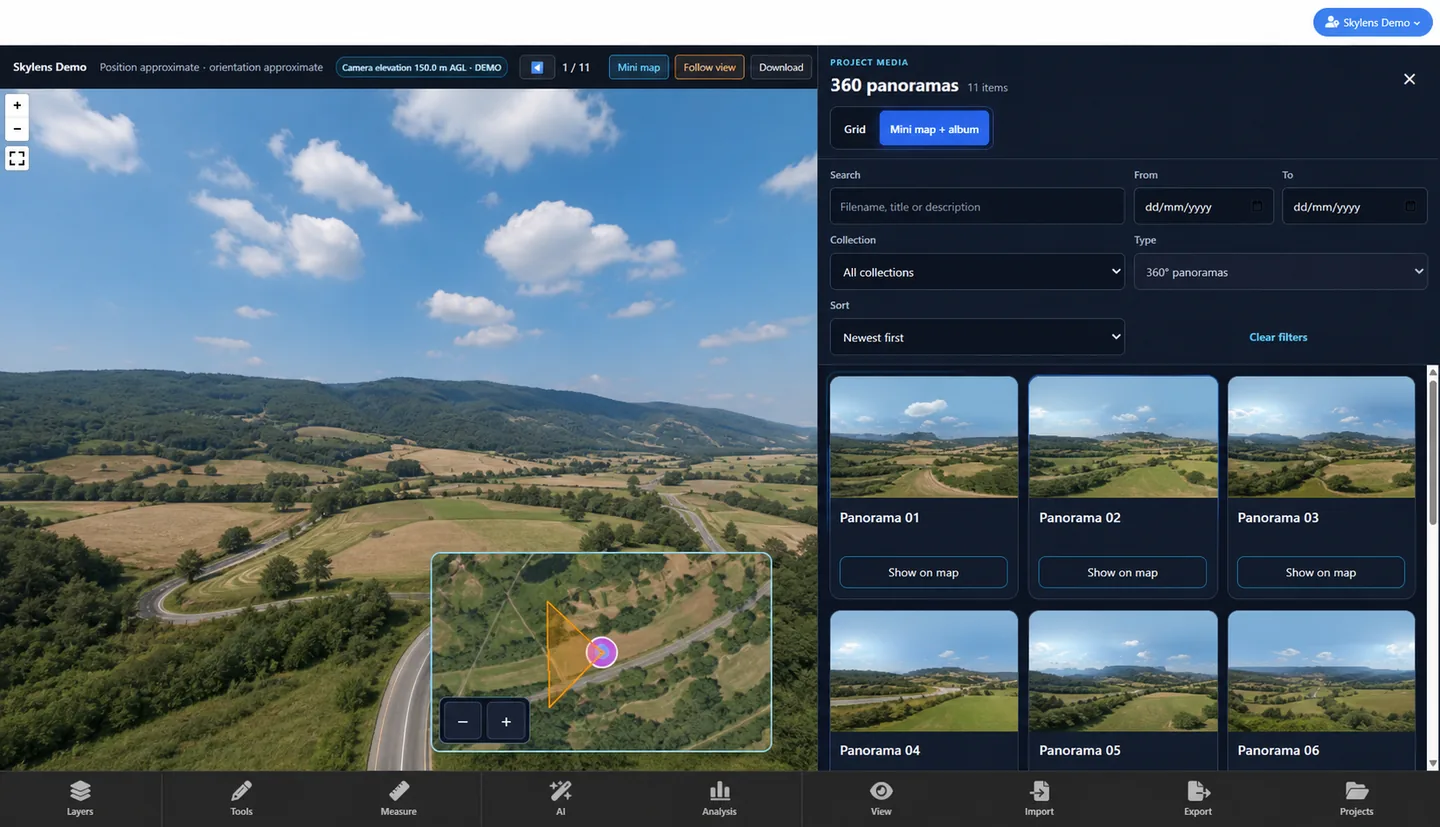
- Select a capture date.
- Open the album for that date.
- Select a card to open a photo or panorama.
- Use Show on map to move to the item’s location.
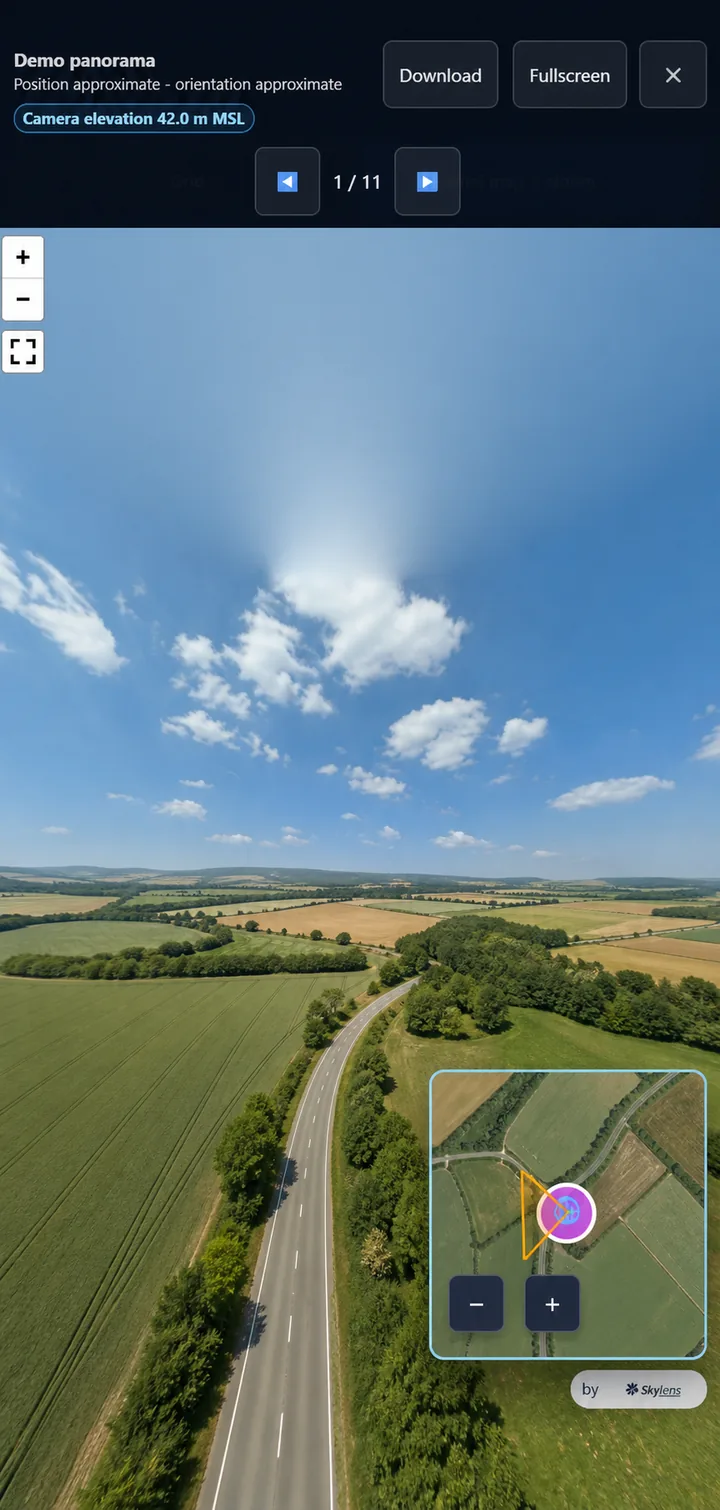
- For panoramas, use the mini map to understand position and viewing direction.
- Return to the album to select another item.
Who approves access changes?
The Client Project Owner is the person appointed by the client to approve users, access levels, download permissions, delivery completeness, and questions about missing material.
Skylens support carries out client-approved requests; it does not set your organization’s internal access policy.
Report a problem
Include:
- project name and capture date;
- item or filename;
- a screenshot and the full page address;
- device and browser;
- approximate time;
- what you expected and what happened.
Client acceptance
Client Project Owner: __________________________
Reviewed / approved on: ________________________
Notes: ________________________________________
Screenshots in this guide are anonymized demonstrations. They contain no client data, temporary URLs, or real locations.